
Finding and Selecting Tasks in ATLAS
1. Starting Your Search from the Homepage
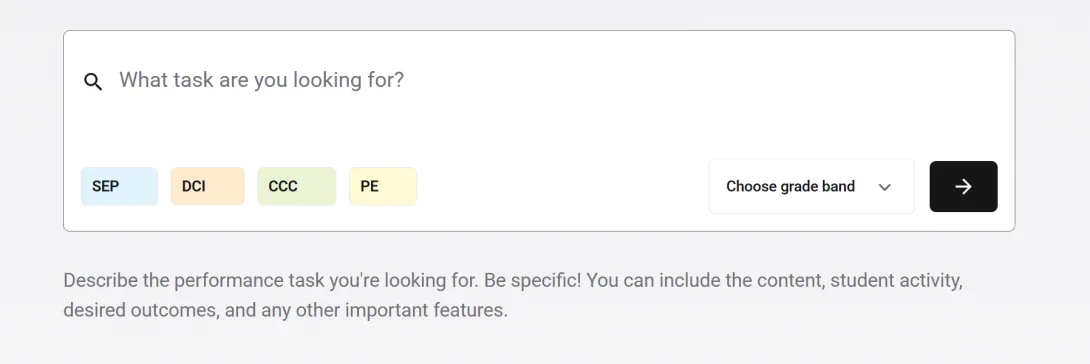
Start your search right from the homepage. The more detail you put into your prompt, the more likely you are to find the right task in a single step. Describe the content, student activities, outcomes, durations, or teaching strategies you want. You can also choose your grade band and filter by NGSS dimensions before you search, though filtering hides tasks that do not match exactly. You can always add or remove filters on the results page.
Tip: Be specific
A detailed prompt returns better matches, with the strongest task more likely at the top.
- Instead of: "Ecosystem task for fifth grade."
- Try: "Accessible fifth grade ecosystem task about decomposition, where students design an investigation or experiment."
2. Refining Your Search Results
On the results page, the search bar at the top is pre-filled with your original prompt. If the tasks shown are not quite right, edit your prompt and search again.
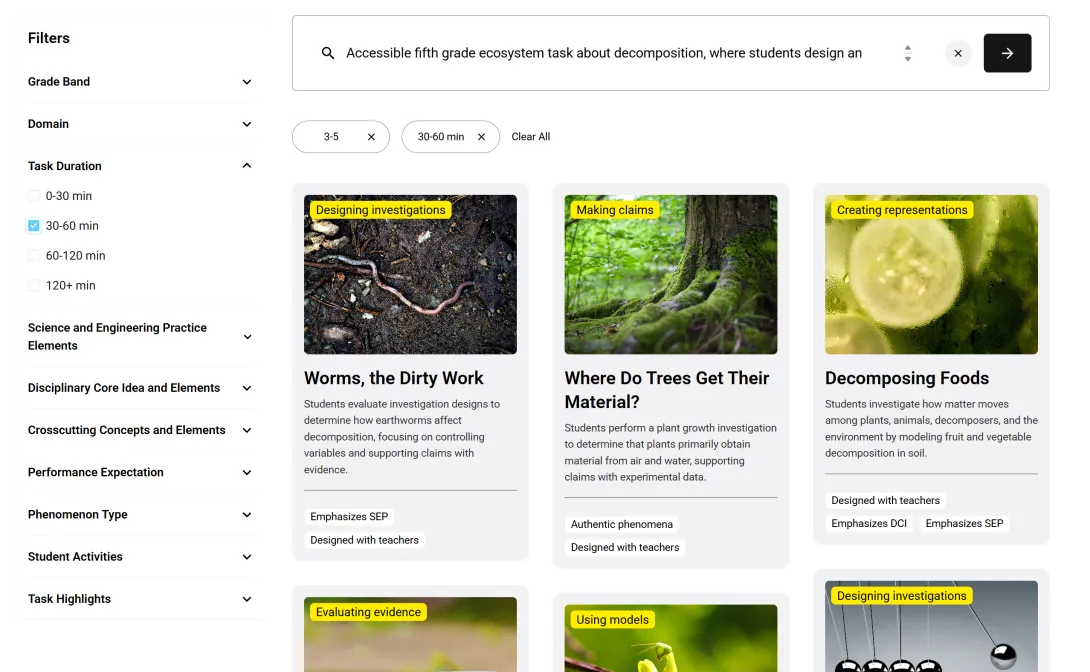
If your search returns a lot of tasks, use the filters on the left to narrow them down. For example, if you did not mention duration in your prompt, you can now limit results to 30 to 60 minute tasks.
3. Choosing a Task to Review
Each task card gives you the key information you need to decide which tasks to look at more closely.
- The yellow tag at the top shows the main activity students will do. Most tasks include several activities; this is the one students spend the most time on or that matters most to the task.
- Below the image are the title and a short summary.
- At the bottom are task highlights that flag notable features. Up to four show here; some tasks have more on the full task page.
When you are ready to look closer, click a task to open its full task page.